Wherigo Player
Play Wherigo cartridges (.gwc) live in your browser.
Library
Saved on this deviceContinue where you left off
The cartridge file is not on this device any more. Open the .gwc from the Open tab and your progress will be waiting.
Your cartridges
Your Library is empty
Cartridges you open are kept here on this device, with your progress, so they work offline and are still here after you close the pageapp. Open a .gwc file to begin, or try the example: a short walk that shows every screen.
First time with a Wherigo?
See how the player works first: the map, the three movement modes, the tabs for what you see, carry and still have to do, and the way the cartridge talks to you, screen by screen.
Open
Nothing is uploaded. A cartridge you open is added to your Library and kept on this device, up to 50 MB each.
How to play
A picture of every screen in the player and what each part of it does, then tips for the field. It is all on this device, so it works with no signal.
Starting a cartridge
The player opens on its Library, one of four tabs. Open is where a new cartridge comes in: tap to choose a .gwc file, or drop one on it on a computer. If you have never played a Wherigo before, try the example cartridge there: it is a short game set on Liberty Island that you can walk through from your chair.
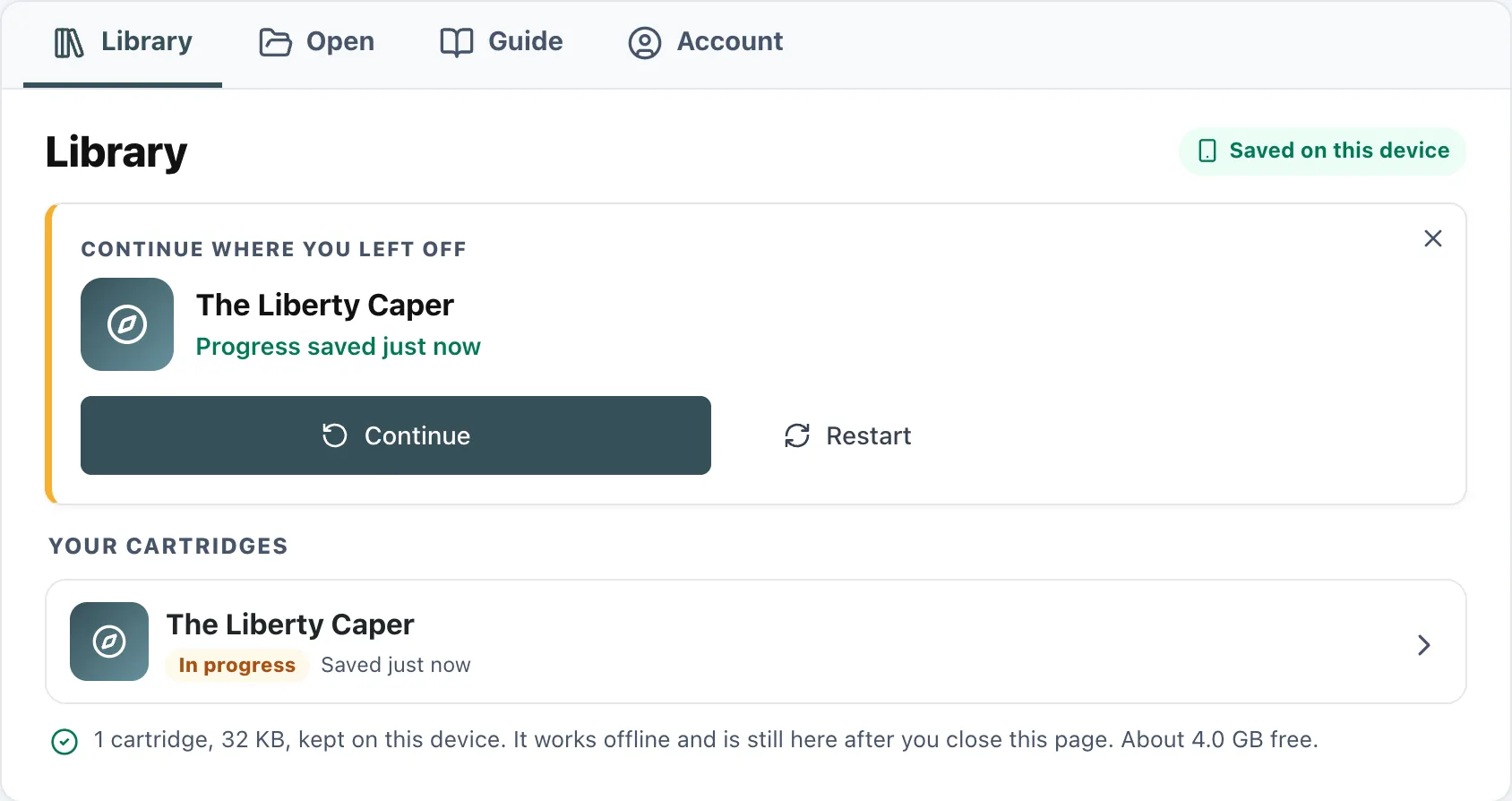
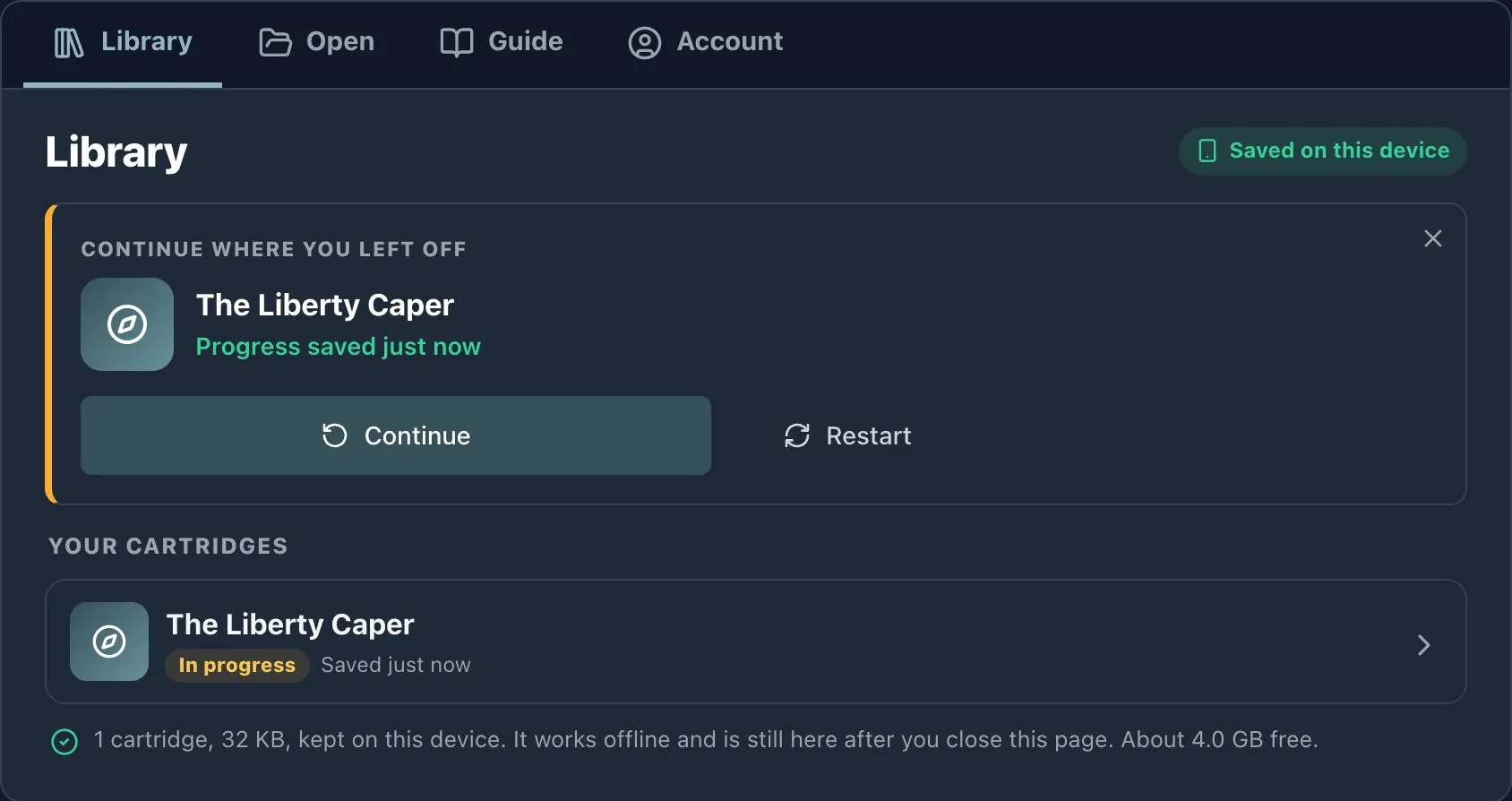
- Cartridges you have opened stay on the device, in the Library, so the next time you come back you do not need the file picker again. Each one says where it stands: in progress and when it was last saved, when you last played it, or not started yet.
- A game you left unfinished is pinned at the top as Continue where you left off, one tap from where you stopped. Done with that game? The X in its corner dismisses the card, and it stays away until you make new progress somewhere.
- Tapping a cartridge shows you its name, description, starting location and saved progress first. Nothing runs until you press Start, or Resume for a game in progress. Remove from library is there too, and it leaves the saved game alone.
- Guide carries this guide inside the player, so it works with no signal, and Account is where you sign in to carry your cartridges to another device.
The screen you play on
Once a cartridge is running, the map is on the left and everything the cartridge has given you is on the right. The nine numbers below are on the picture and in the list under it.
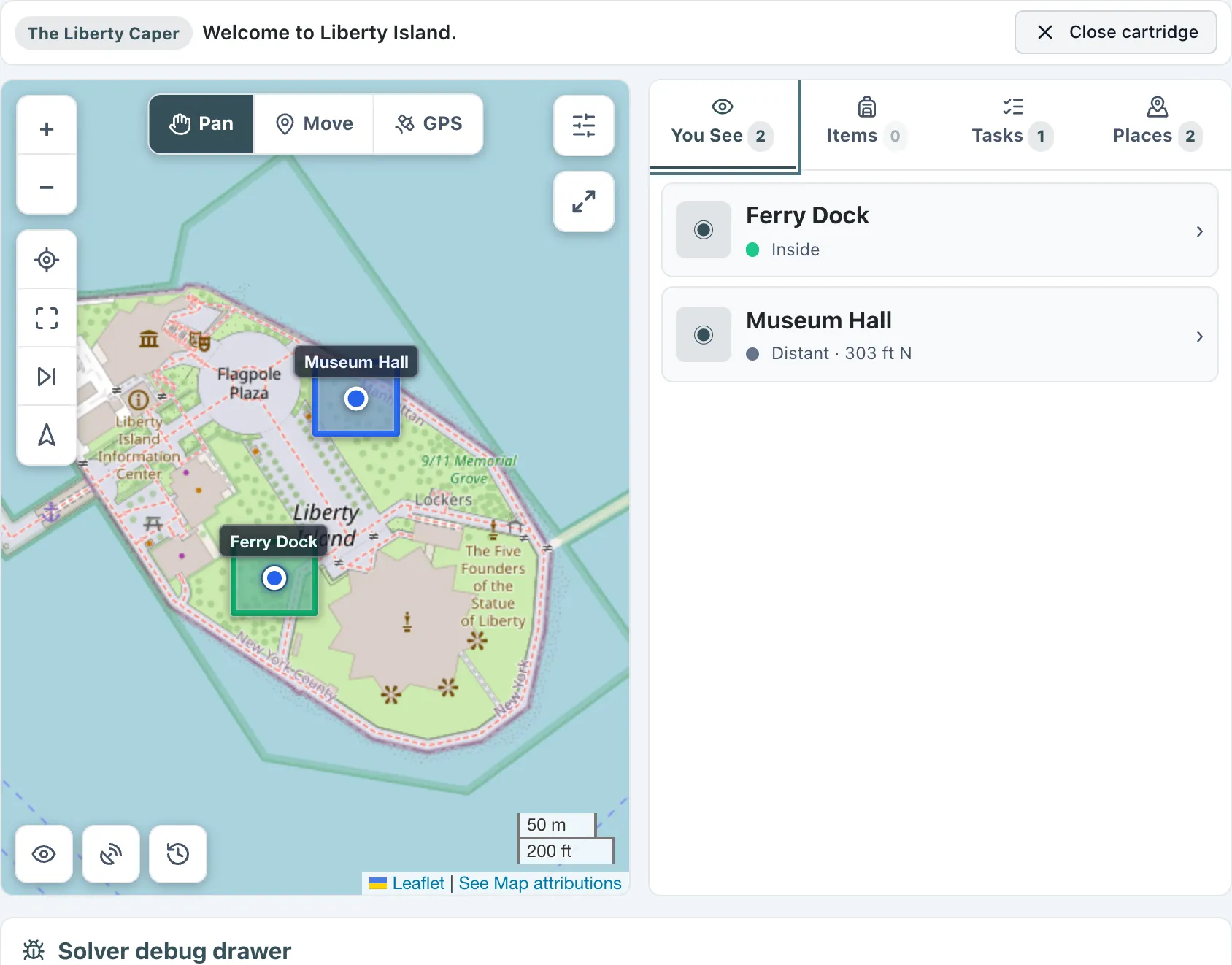
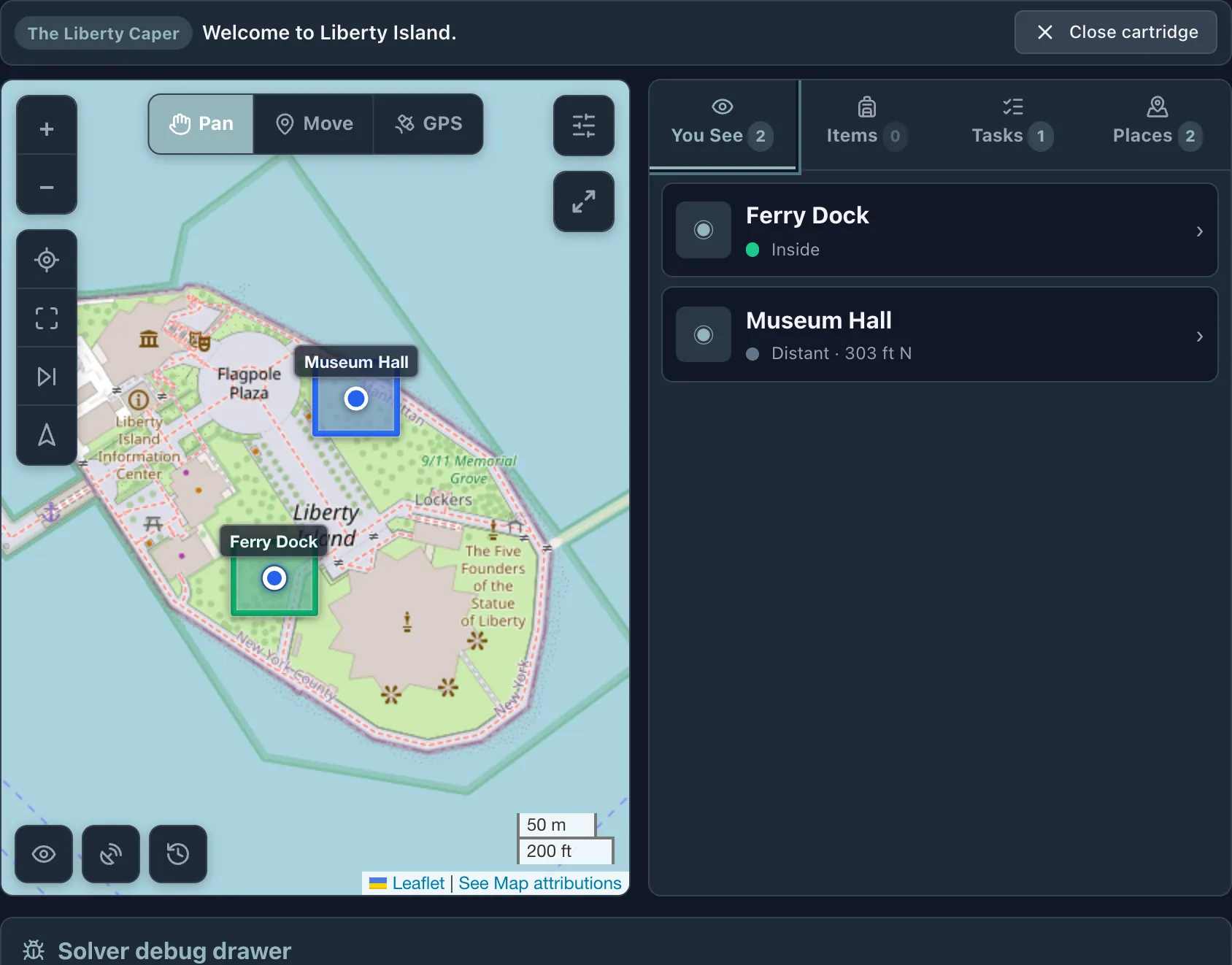
- 1The cartridge. Which game is running. It is the first thing to check when you come back to a player you left open.
- 2What the cartridge is telling you. This line is the cartridge talking to you: how far the next place is, and what just happened. Anything that needs an answer opens on top of the map instead.
- 3The places you walk to. Zones the cartridge has switched on are drawn here, with your own position as the blue dot. A zone appears only when the cartridge reveals it, so a nearly empty map early in a game is normal.
- 4Walking, or trying it from your chair. GPS follows your real position, which is the one you want in the field. Move lets you tap the map to put yourself somewhere, so you can try a cartridge at home. Pan scrolls the map without moving you at all.
- 5Finding your way. Center the map on yourself, fit everything on screen, jump to the next zone, or lock the map so it follows you as you walk.
- 6Map tools. Three buttons in the bottom left corner of the map. The eye shows the zones the cartridge is keeping hidden, which is a solver's view rather than a player's: they come in as one plain dashed gray shape, with the state color only on the small pin at their center, so they never read as a zone the cartridge has actually revealed. The satellite mark turns on the coordinates you are standing on, which appear just above as a button you tap to copy. They are off until you ask for them, because most of the time nobody is reading coordinates and they sat over the map's own credit line. The clock opens What you have done, described further down.
- 7Settings. How to play, restarting the cartridge, your trail, the basemap, distance units, vibration and an offline map to take with you all live behind this button. The arrows just under it throw the map full screen, and on a phone the player is already full screen so they are not there.
- 8You See, Items, Tasks, Places. Everything the cartridge has given you. You See is what is around you right now, Items is what you are carrying, Tasks is what to do next, and Places lists the zones with their distances. The number on each tab is how much is in it. Tapping a place opens its description, with View on map to see where it sits among the others and Navigate to this place to walk there.
- 9Close (the X). Takes you back to the Library. Your progress is saved first, so you can pick the same game up later from Continue where you left off.
When the cartridge talks to you
Messages, questions and choices arrive on top of the map. A cartridge usually says hello the moment it starts, so the first thing you see after pressing Start is one of these rather than the map. Read it, answer it, and the map is underneath.
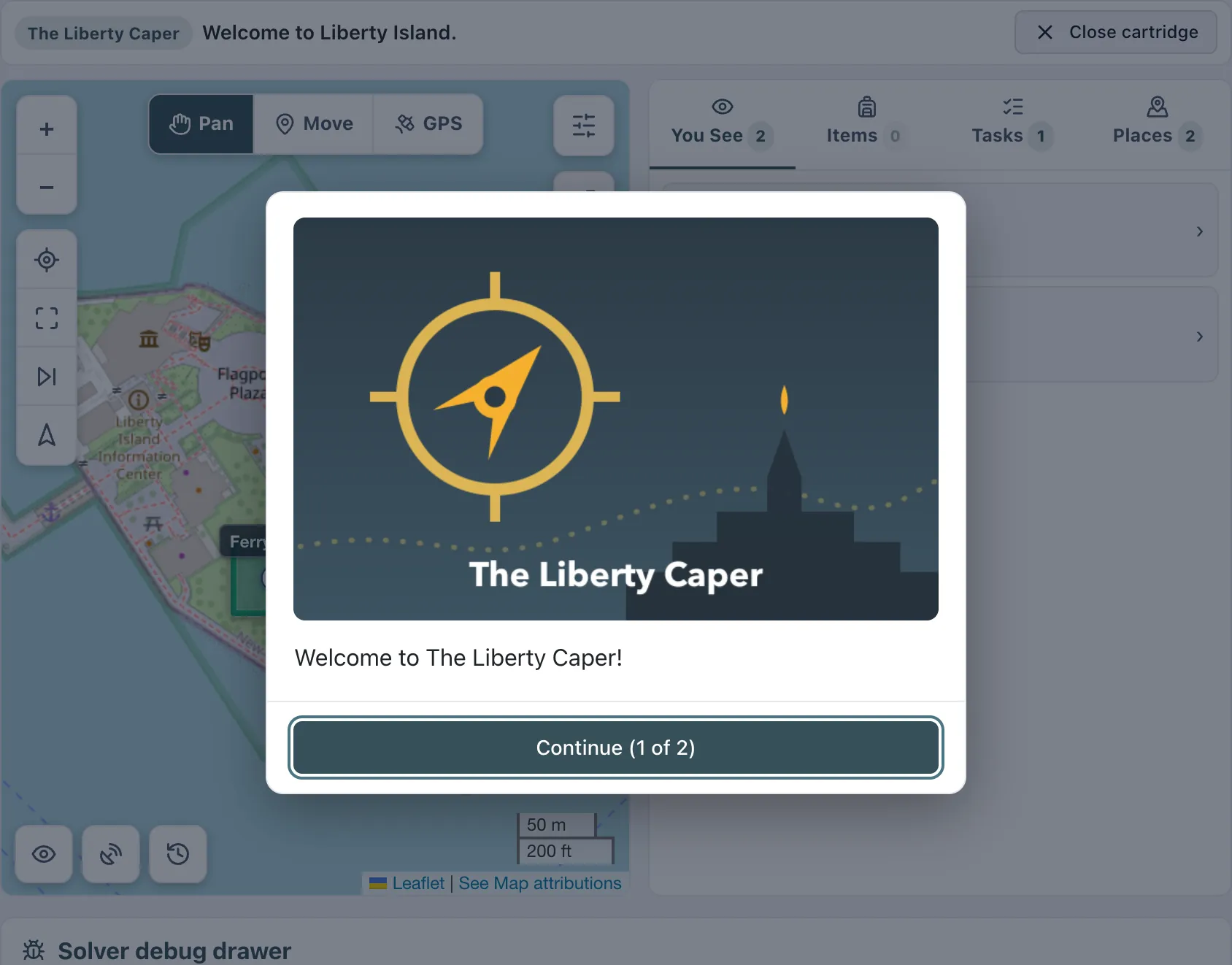
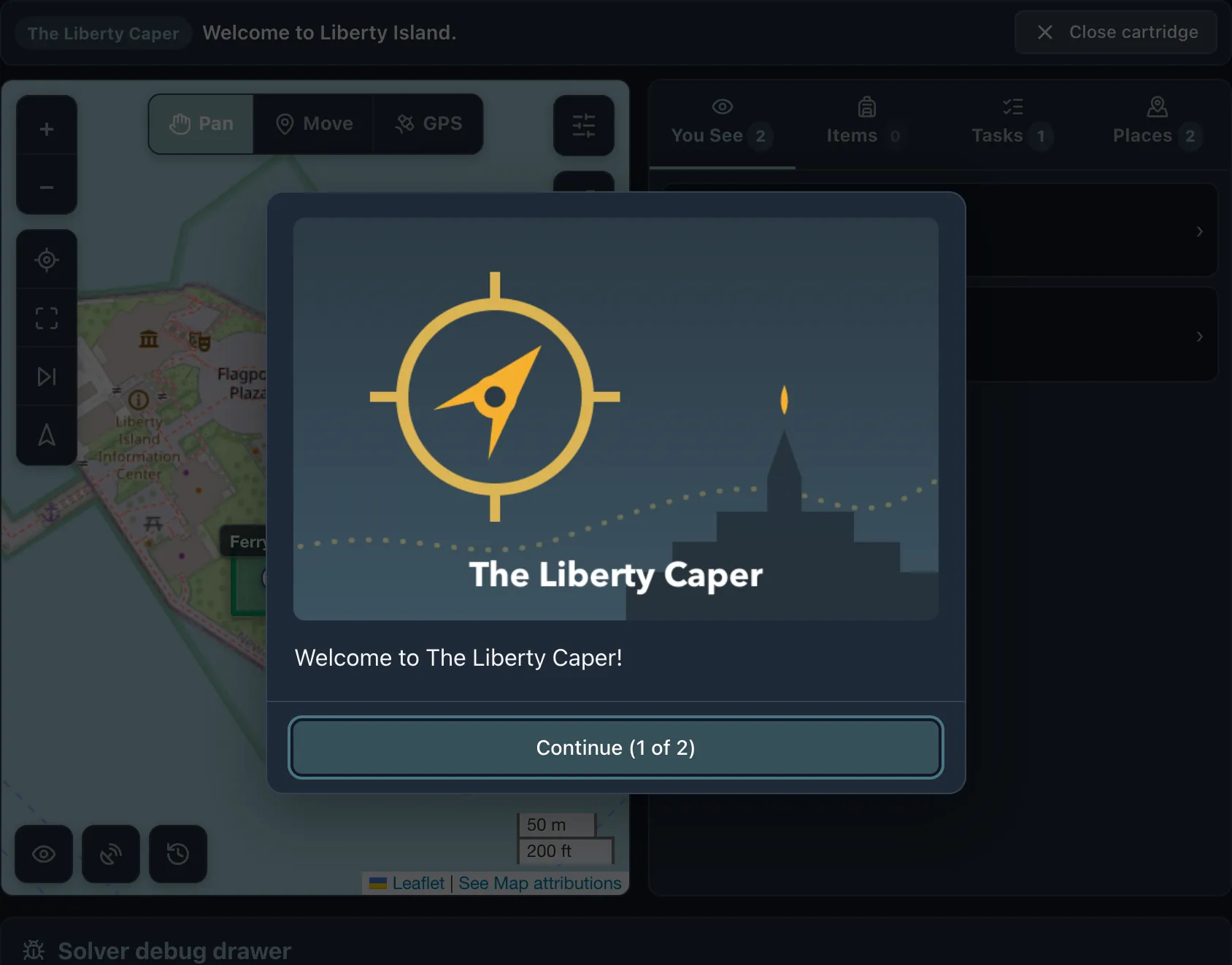
- A message that is part of a run of several counts itself, so you know how many are left.
- Messages carry the cartridge's own pictures, so an author who drew a title card, a character or a clue can put it in front of you.
- A question waits for you. Nothing in the game moves on until you answer it.
- Some cartridges ask your phone for your attention outright. When one does, the player beeps and buzzes, so it reaches you with the phone in a pocket.
- Some cartridges ask you to type an answer, and some give you a list to pick from. Both arrive the same way.
- When the dialogs finish and something new is standing where you are, a character to talk to or an item to pick up, a small note appears: The Field Tester is here. Open the You See tab. Tap the note and you are there. Cartridges hang their next step on these, so the player makes sure you never miss one behind the map.
On a phone, out in the field
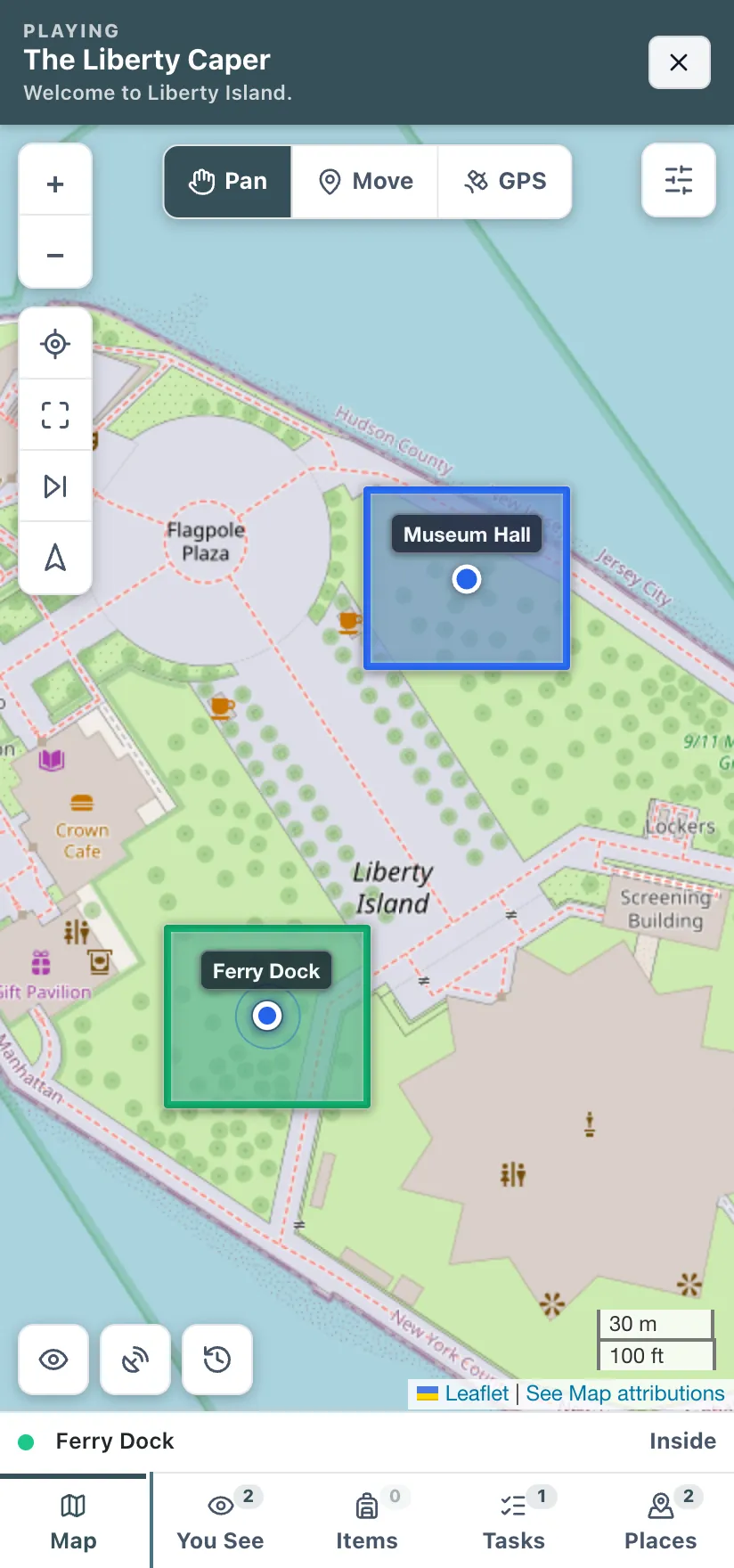
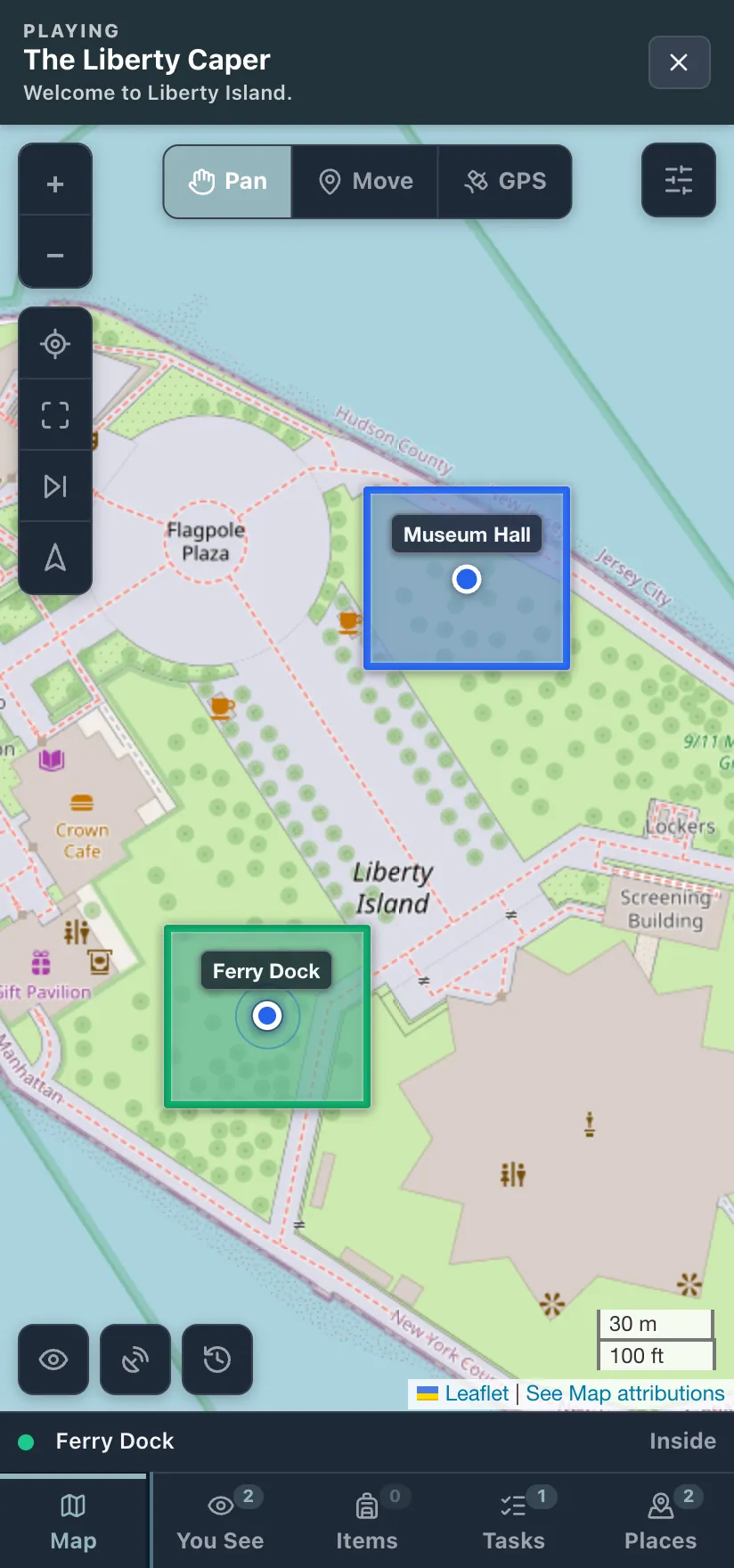
- The player takes the whole screen and becomes five tabs on a rail along the bottom, where your thumb is: Map, You See, Items, Tasks and Places. Each one fills the screen on its own, so the map is a full screen map and a list is a full screen list.
- A game opens on the Map tab. Tap a list tab to read something, then tap Map to get back to walking.
- The line at the foot of the map is the place you are nearest, and how far away it is or that you are standing in it. Tap it to open the Places tab.
- The three buttons in the bottom left corner of the map are the same ones a big screen gets: the eye for hidden zones, the satellite mark that turns the coordinates on, and the clock for what you have done. They are sized for a thumb.
- A faint dashed line follows you around the map: that is your trail, where you have already been. It is drawn under the zones so it never hides one, and you can turn it off in Settings.
- The arrow in the top right corner ejects the cartridge, saving as it goes. You never have to go looking for the way out.
- Switch to GPS before you set off. The player asks for your location the first time, keeps the screen awake while a game is running, and re-checks every zone as you move.
- Take the map with you: Settings has an offline map you can download for the area a cartridge covers, for the caches that are out of signal.
- If you play often, install it. There is a real app for both phones, and the section below says which is which.
On an iPhone, and on Android
Everything above works in the phone's browser, and for a cartridge or two that is enough. The app is called Waypost, it is the same player, and it adds the three things a browser tab cannot do: your phone treats a .gwc file as something it knows how to open, the whole player ships inside the app so it starts with no signal at all, and a cartridge keeps running with the phone in your pocket.
iPhone and iPad
Waypost is in open beta on TestFlight, Apple's own app for trying apps before they are on the App Store. iOS 15 or newer. Nothing is sideloaded and nothing has to be trusted by hand.
- Opening a .gwc from Files, Mail or a share sheet loads it straight into the player.
- Starting a game asks for your location once, and nothing else. Later, the first time you pocket the phone mid-game, it offers to keep playing in your pocket. Say yes and iOS asks for Always location, and only then for notifications, so an arrival can reach you with the screen off.
- Zones you arrive at buzz the phone and raise a notification, so a cartridge that has been waiting for you does not go unnoticed.
Android
Waypost for Android is a download from this site rather than the Play Store, so Android checks with you twice while installing it. Android 7 or newer.
- Tapping a .gwc in your downloads, or sharing one from a chat, opens it in the player.
- Location is granted the way any app asks for it, and a game keeps the screen awake while you walk.
- The player inside the app updates itself, so fixes arrive without a download. Now and then the app around it offers an update of its own.
Not ready to install anything? On either phone, open the player in your browser and add it to the home screen. You get the same player, the same offline play and the same cartridge library in its own window. Only the file handling and the pocket play are app specific.
Walking to one place
Open a place from the Places tab and press Navigate to this place for a full-screen walk to exactly one zone. It turns GPS on for you, and you choose how to be guided: a compass arrow that points the way, or this map view with a dashed line from you to the target.
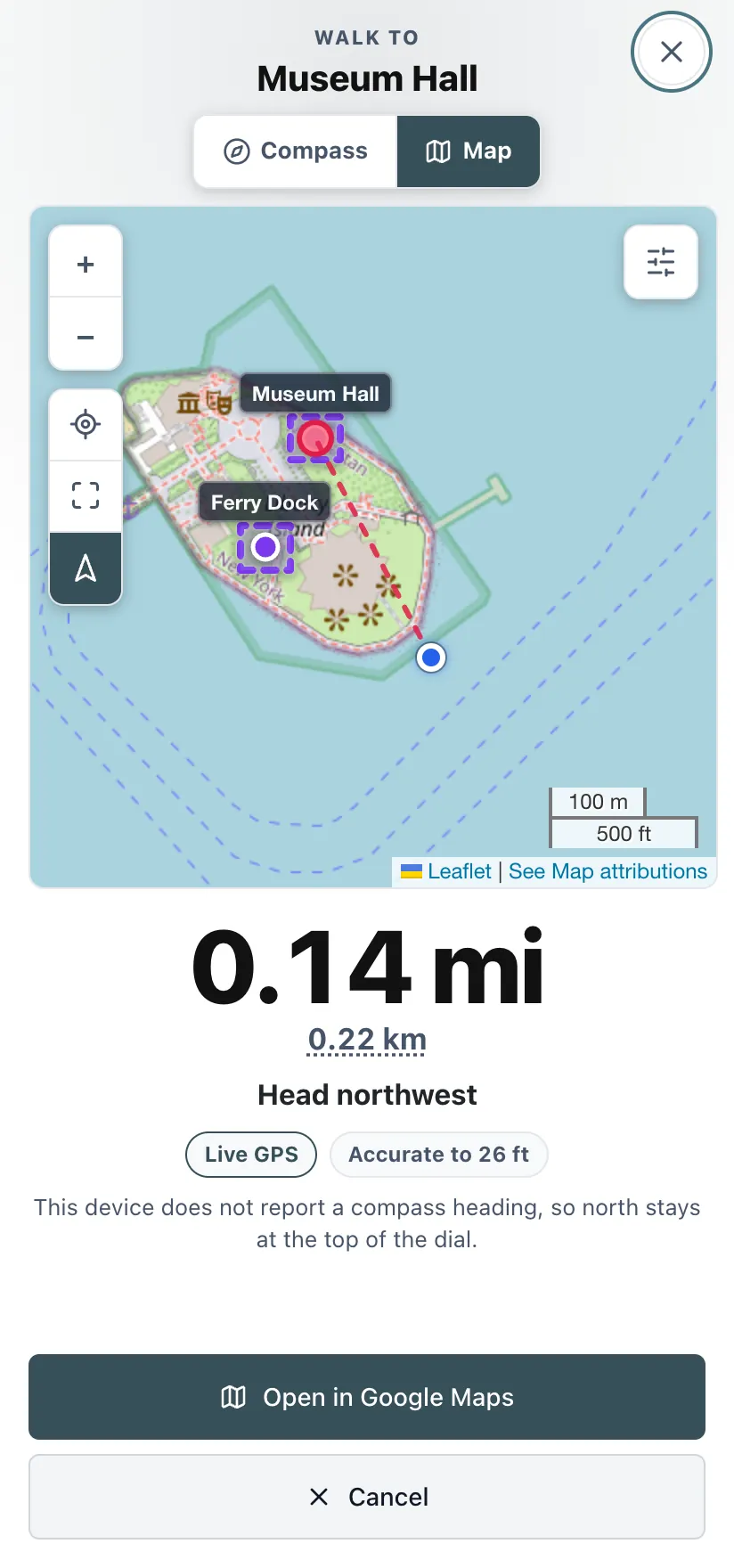
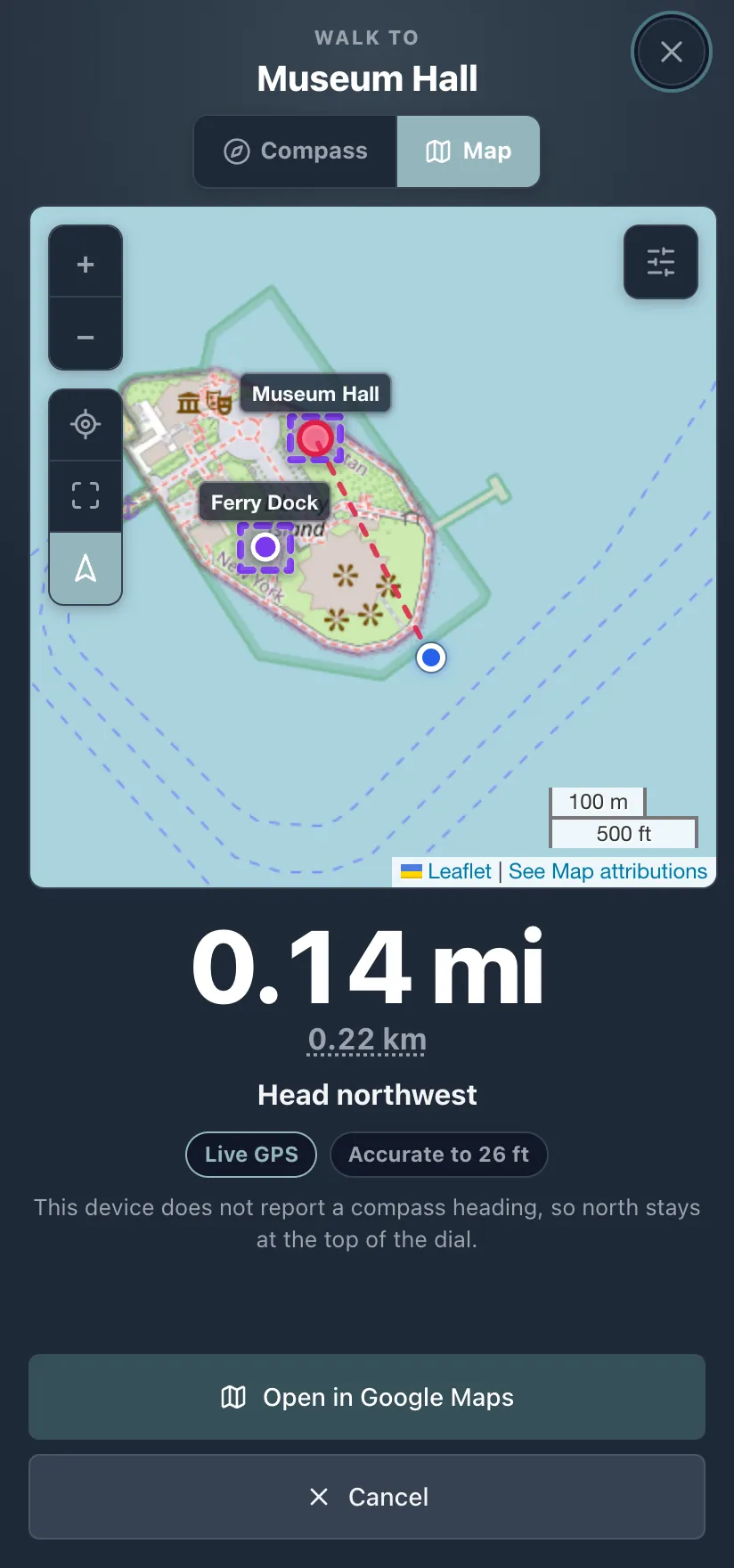
- The big number is the distance left, in your units, with the other units under it. Below that, which way to set off. Tap either number to swap the whole player between feet and meters.
- Far out it counts down in miles or kilometers, and inside a tenth of a mile it switches to feet, which is the point where the number stops being something to drive by and starts being something to pace out.
- Compass and Map are two views of the same walk: switch freely, the player remembers which one you prefer.
- This screen is for real walking, so the map's jump-to-the-next-zone button is put away here. Your feet move the blue dot.
- The chips under the distance show the GPS state and how accurate the fix is right now.
- Rather follow turn-by-turn directions? The button at the foot hands the destination to your phone's own maps app.
- Stepping into the zone ends the walk by itself, and whatever the cartridge does on arrival is the next thing you see. Cancel backs out and puts your movement mode back the way it was.
Settings
The button above the map opens everything about how the player looks and what it draws.
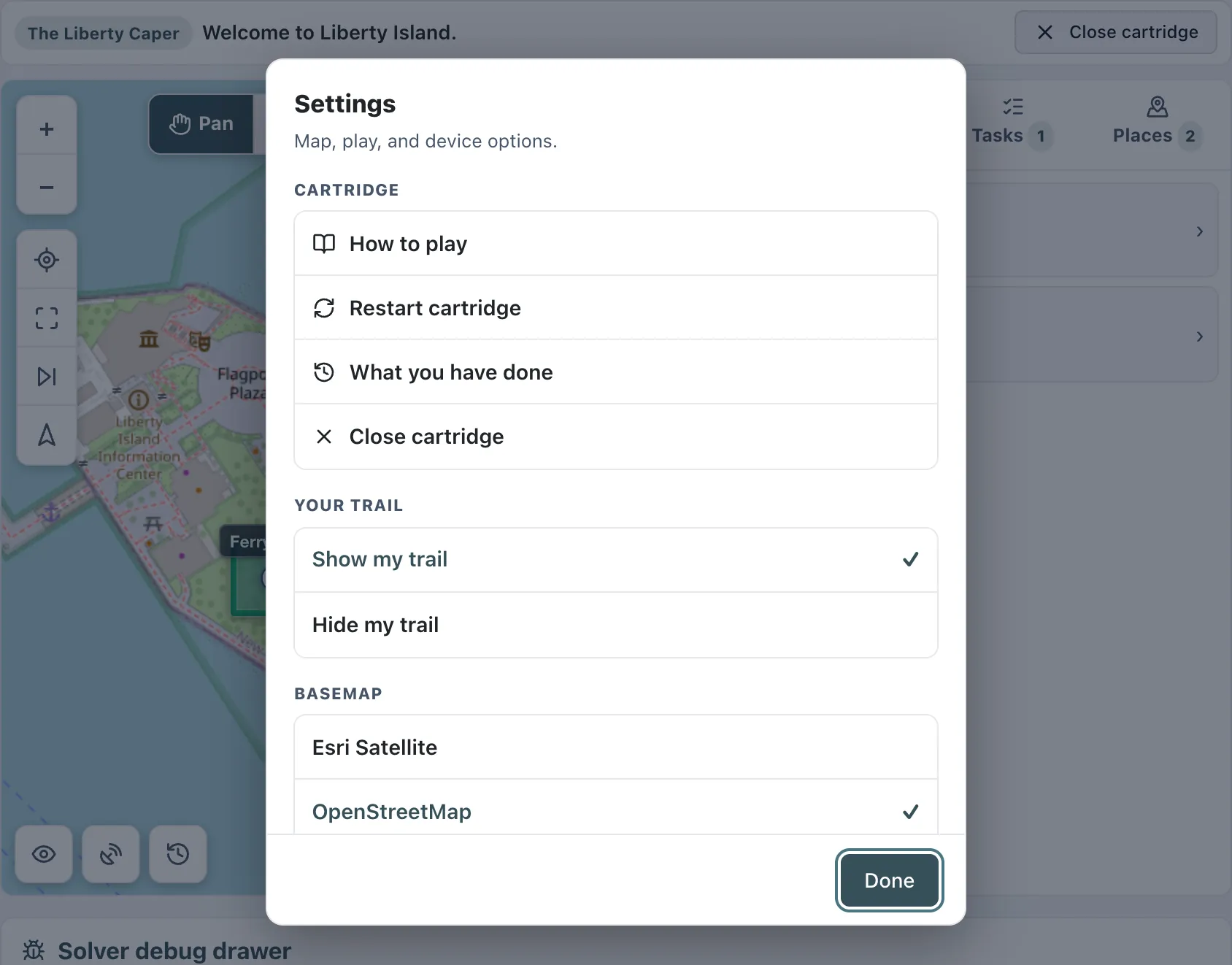
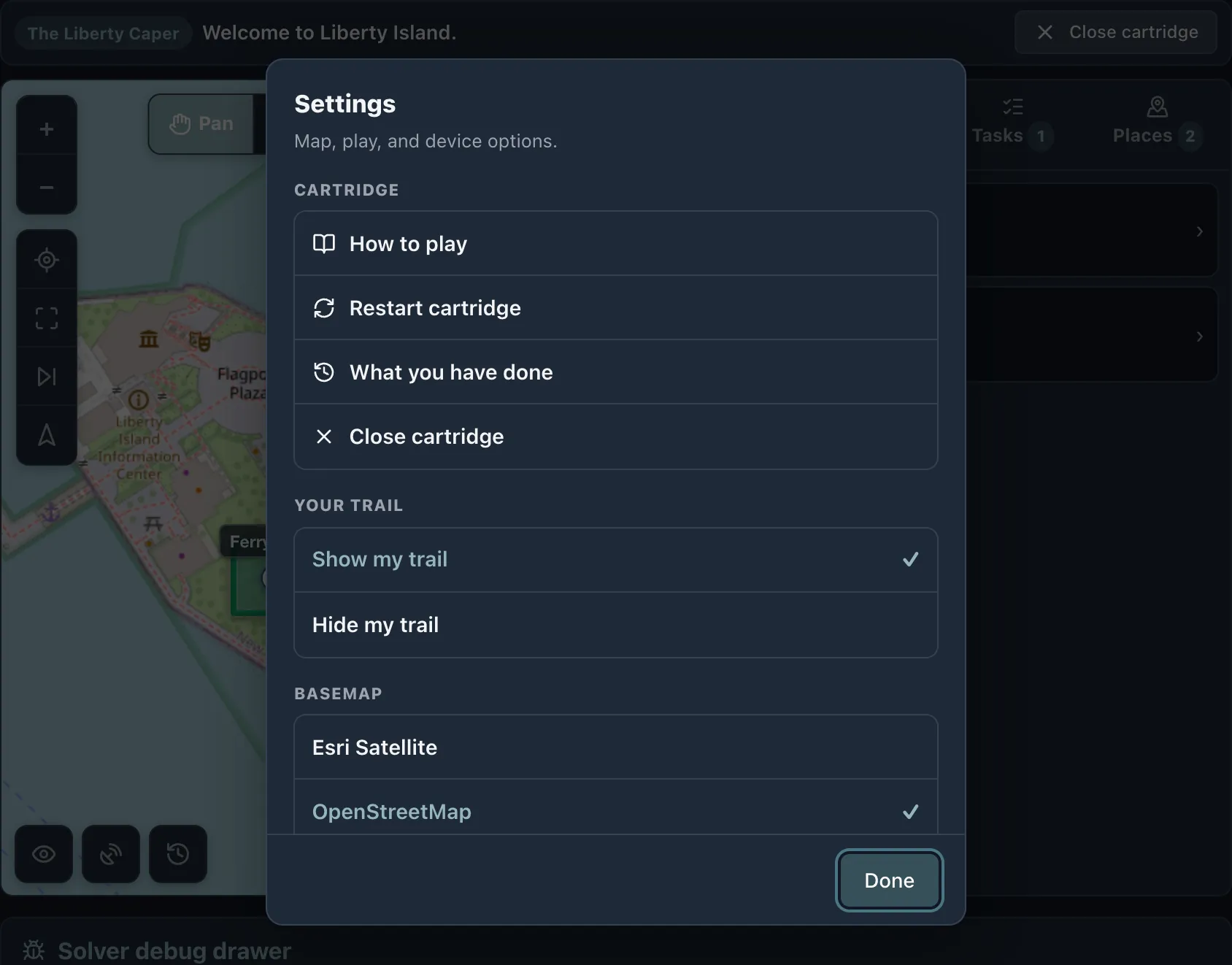
- How to play: this page, opened in a new tab, so you can read it without leaving the game.
- Restart cartridge: start the same game again from the beginning. It asks twice, because it throws away the walk you have done.
- What you have done: the same list the clock on the map opens, described below.
- Close cartridge, saving your progress on the way out.
- Your trail: show or hide the dashed line of where you have been.
- Basemap: OpenStreetMap, Esri Street, Esri Topo, OpenTopoMap or Esri Satellite. Satellite is the one that tells you whether a zone is on a path or in a hedge.
- Distance units: feet and miles, or meters and kilometers, or whatever your device already uses.
- Offline map: download the tiles around the cartridge before you go. It appears once a cartridge is running, since until then there is no area to fetch.
- Vibration: whether arrivals and messages buzz the phone. Only on a device that can actually vibrate.
Retracing your steps
Cartridges close places behind you. Once a stop is done its zone can switch off and disappear from the map, which is the author keeping you moving forward, but it does mean that after a few stops it is easy to lose track of what you have already done and who you have already spoken to.
- Tap the clock in the bottom left corner of the map. The status line under the cartridge name opens the same thing, and so does What you have done in Settings. The player lists everything you have done so far: where you arrived, what you picked up, what you finished and which questions you answered. Newest first, grouped by the place it happened in, and Escape or the close button puts it away.
- It records what you answered, word for word, next to the question. Plenty of cartridges never tell you whether an answer was accepted, on purpose, so this is often the only way to see that you typed a 6 where you meant a 9, or that you already tried the thing you are about to try again. It is kept on your device, in your own saved game.
- Go back one step. At the bottom of that list is a button naming the last thing you did that changed the cartridge, and it puts the game back to just before it: a task goes back to unfinished, an item leaves your pack, a zone that closed behind you opens again. It is one step, not a rewind of the whole walk, and it is only offered when that step really changed something. Walking somewhere is not undoable, since walking back out is the undo, and for the same reason the offer expires the moment you move on or arrive somewhere new: undoing a step you took two zones ago would put the game somewhere your feet are not.
- Your trail is the other half of the same question. The dashed line on the map is every spot you have stood in, so a stop you visited is still visible even after its zone has been switched off.
- Both are kept with your saved game, so they survive closing the app and coming back.
Progress, saving and finishing
- Your progress is saved as you play, on the device you played it on. Closing the tab, ejecting the cartridge or losing signal does not lose the game.
- Coming back, the Library offers to continue where you left off. A cartridge you have played is kept on the device, so it is one tap to resume.
- When a cartridge is finished it usually gives you a completion code. That is the code the cache page asks for, and the player shows it at the end. That card also offers Finish and eject: Close leaves the finished game up if you want to look around the map, and Finish puts the cartridge away.
- A cartridge that is stuck, or one you want to play again from the beginning, is Restart cartridge in Settings. It asks twice, and then the game starts over with nothing carried across.
Playing on more than one device
Everything above works with no account at all, and that is how Waypost runs unless you decide otherwise. If you want a walk you started on one device to be waiting on another, you can sign in to your CacheSleuth account, the same one My Puzzle Texts and the Cache Builder use.
- Where it is. The player's Account tab has a line telling you whether you are signed in, with a button next to it. During a game the same panel is under Account in Settings.
- Signing up happens on the website. The player signs in; if you do not have an account yet, the Create an account link opens cachesleuth.com, and on a phone that opens your browser rather than taking over the game.
- What moves. The cartridges you have played and the games you have saved, plus the name you type at the start of a cartridge. All of it is encrypted on your device before it is sent, so it cannot be read by anyone else, including us.
- What does not move. Your notes. Signing in here does not touch My Puzzle Texts.
- Room. An account keeps up to 20 cartridges or 50 MB, whichever comes first, and the least recently played file makes way when you go past it. Saved games are never removed to make room. If a cartridge file has aged out, load the .gwc again and your walk is still there, exactly where you left it.
- Two walks, one cartridge. If you played the same cartridge on both devices, the two cannot be merged, so Waypost asks you which one to keep rather than guessing.
- Signing out unlinks that device. Your cartridges and saves stay on it.
Solving rather than playing? The player has a debug drawer that shows the cartridge's live variables, zone states and distances. On a wide screen it is under the map, and on a phone it is inside Settings. The Wherigo Solver reads a .gwc without running it.
Playing in the field: tips and FAQ
Tips for a live hunt
- Standing at the cache? Tap GPS. The map opens in Pan mode, which never moves you, so zones will not react until you switch. Tap GPS in the map toolbar and allow location access when your browseryour phone asks, and the marker follows you as you walk. The GPS chip in the status bar lights up when it is live. Location only works over a secure (https) connection.
- Get it on your phone before you leave home. The Waypost app for iPhone, iPad and Android opens .gwc files straight from Files, Mail or a share sheet, starts with no signal, and keeps a cartridge running with the phone in your pocket. Or add this page to your home screen for offline play with nothing to install. Both are in the questions below.
- You are on the home screen version. It runs full screen and works with no signal. The Waypost app adds two things this page cannot do: it opens .gwc files from anywhere on the phone, and it keeps a cartridge running with the phone in your pocket.
- Keep the screen awake and this tab in front. Phone browsers pause GPS and timers when the screen locks or you switch apps, so timed puzzles and moving zones can stall. Return to the tab and they pick back up.
- Put the phone in your pocket and keep walking. The first time you put the phone away mid-game, Waypost offers to keep playing in your pocket. Take it, allow Always location and then notifications, and the cartridge keeps evaluating zones with the screen off and tells you when you arrive. Decline and the game simply needs the screen on.The cartridge keeps running with the screen off and sends a notification when you arrive, so allow notifications when it asks.
- Your progress autosaves on this device. You can close it and press Resume later to continue where you left off.
- Something in the way, like a fence or a closed path? Switch the map to Move mode and nudge the marker up to 200 feet from where you are standing. Play Anywhere cartridges can be moved anywhere, since they have no real location.
- Bring a charger and jot down the posted coordinates. A phone is not a rugged handheld, and continuous GPS drains the battery.
Frequently asked
- Do I need to install an app?
- No. It runs in any modern mobile or desktop browser and nothing is uploaded, and you can add this page to your home screen to play with no signal at all. There is also a real app, Waypost for iPhone, iPad and Android: your phone treats a .gwc file as something it knows how to open, the whole player ships inside the app so it starts with no signal, and a cartridge keeps running with the phone in your pocket. Either one is worth setting up before a hunt.
- Do I need the app as well?
- Not for a normal hunt. This home screen copy plays offline and keeps your cartridges and saved games. The Waypost app adds opening .gwc files from Files, Mail or a share sheet, and playing with the screen off. If you want those, install it from that page and it takes over from here.
- How do I get a cartridge into the app?
- Open a .gwc file from anywhere on the phone, such as your downloads, Files, Mail or a share sheet, and it lands here ready to play. Or tap Open and choose the file. Cartridges you have opened stay in your Library, and loading one uploads nothing.
- How do I install it on an iPhone or iPad?
- Two ways. The Waypost app page has the app itself, with the iPhone steps and what it asks you for. The lighter option is a home screen shortcut: open this page in Safari (Add to Home Screen does not exist in Chrome or Firefox on iOS), tap the Share button, the square with an arrow, scroll down and tap Add to Home Screen, then Add. Launch it from the new Waypost icon, not from Safari, so it runs full screen with its own offline cache, and choose Allow While Using App the first time it asks for location.
- Open the installed copy once while you still have signal so it can cache everything it needs.
- How do I install it on Android?
- Two ways. The Waypost app page has the app download and walks through the two warnings Android shows for an app that is not from the Play Store. The lighter option is a home screen shortcut: open this page in Chrome, tap Install in the banner at the top of this page if it is showing, or open the browser menu, the three dots, and tap Install app or Add to Home screen. Confirm with Install, then launch it from the new home screen icon and allow location when it asks.
- How does the app stay up to date?
- The player inside the app updates itself quietly, so fixes to the map, the tabs and the cartridge engine arrive on their own the next time you open it with signal, with nothing to download. Now and then the app around it changes too. When that happens the app says so and offers the new version. Your cartridges and saved games are kept either way.
- Does it use my real GPS?
- Yes, once you tap GPS on the map. The map starts in Pan mode and your marker sits at the cartridge start location until you switch, so tap GPS as soon as you are in the field and allow location access when asked. Move mode lets you nudge your marker by hand, up to 200 feet from where you are standing, for a spot you cannot quite reach, like a fence or a closed path the cartridge did not plan for. Play Anywhere cartridges can be played from anywhere, and so can your own cartridges opened from the Wherigo Builder's playtest.
- I tapped GPS but nothing moves.
- Check that the page is on https, that you allowed location for this site, and that the GPS chip is showing in the status bar. On iPhone, also check Settings, Privacy and Security, Location Services. Indoors a fix can take a minute or read as far off, so give it open sky.
- Check that the GPS chip is showing in the status bar and that Waypost is allowed to use your location: on an iPhone that is Settings, Privacy and Security, Location Services, Waypost.on Android that is Settings, Apps, Waypost, Permissions, Location. Indoors a fix can take a minute or read as far off, so give it open sky.
- Will my progress survive closing it?
- Yes. It autosaves on this device and offers Resume, and the Library shows a Continue where you left off card for the game you were last in. Saves stay on this device unless you sign in with a CacheSleuth account, which carries your cartridges and saved games to your other devices, encrypted before they leave the phone.
- What does "Not saved yet" mean in the status bar?
- A dialog is open whose button runs cartridge code, and that pending code cannot be written into a save file. Nothing is saved while that chip is showing, so answer the dialog and the game saves immediately. This matters most at the very start: many cartridges open with a story dialog, so if you close the app while that first dialog is still on screen there is nothing to resume yet.
- Why did a timer or zone freeze while my screen was off?
- Phone browsers suspend background tabs, which pauses timers and location. Keep the screen on during timed sections. The Waypost app is the version that keeps playing with the screen off.
- Playing in your pocket is something you switch on: the app offers it the first time you put the phone away mid-game, and it needs location set to Always for Waypost plus notifications. Declined, or set to While Using, the cartridge pauses when the screen locks and picks up when you come back. You can change both in the phone's Settings.The app keeps playing with the screen off, but a phone's battery saver can still suspend it. Check that Waypost is allowed to run in the background under Settings, Apps, Waypost, Battery, and that notifications are on, or keep the screen on during timed sections.
- Does this log my find on Geocaching.com?
- No. It is a standalone player. Enter the completion code it gives you wherever the cache asks for it.
- Why is the app called Waypost?
- Waypost is the CacheSleuth player's own name, used because Wherigo is a trademark of Groundspeak, Inc. and this player is not affiliated with, endorsed by, or sponsored by Groundspeak. It plays the same .gwc cartridges either way.
- A cartridge behaved strangely. What now?
- Most cartridges work, but if one leans on an unusual feature you can open it in the Wherigo Solver to inspect it, or send a message with the cartridge name.
Account
CacheSleuth account
Optional. Sign in to carry your cartridges and saved games to your other devices, encrypted before they leave this one.
Support Waypost
Waypost is free, has no ads, and is built by one person. If it has walked you to a cache, a small tip helps cover development and the app store fees that keep it available. A tip is a thank you and unlocks nothing. Thank you, and happy caching.
Leave a tipBuild your own cartridge
No cartridge yet? Make one with the Wherigo Builder, then play it right here.
About
Waypost plays Wherigo cartridges on this device. Nothing is uploaded, and your cartridges and saved games stay here.